
VMOS Edge FAQ
This guide is designed to help you quickly resolve common technical issues when using VMOS Edge.
🛠️ 1. Installation and Startup
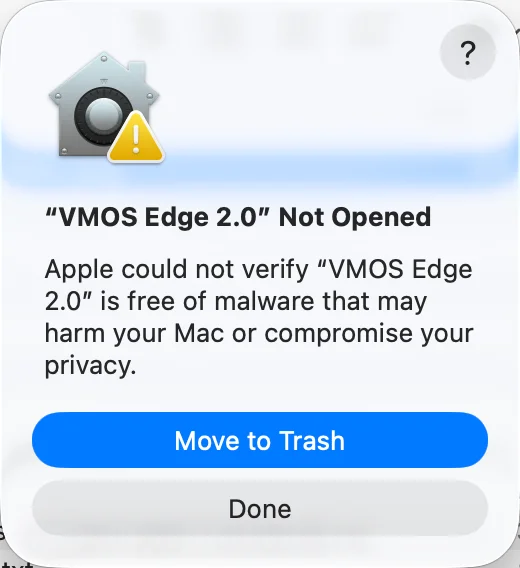
Q1: On macOS, why do I see “VMOS Edge 2.0 can’t be opened because Apple cannot check it for malicious software”?
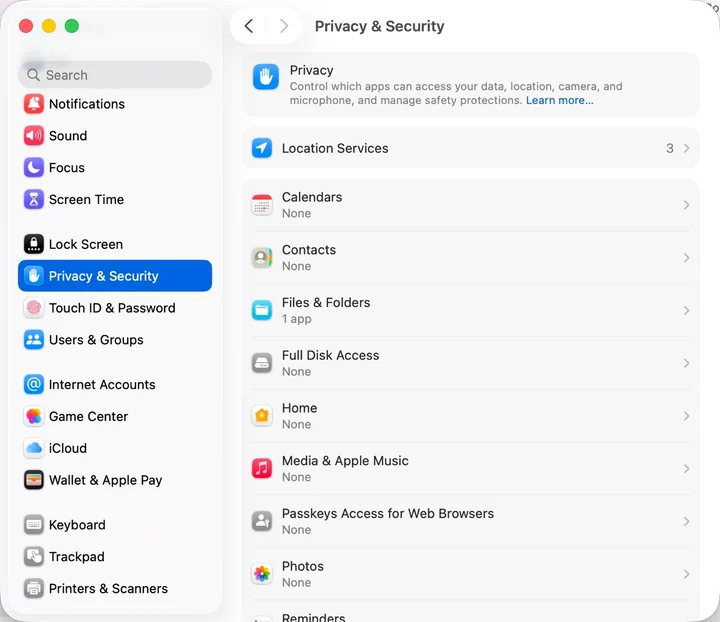
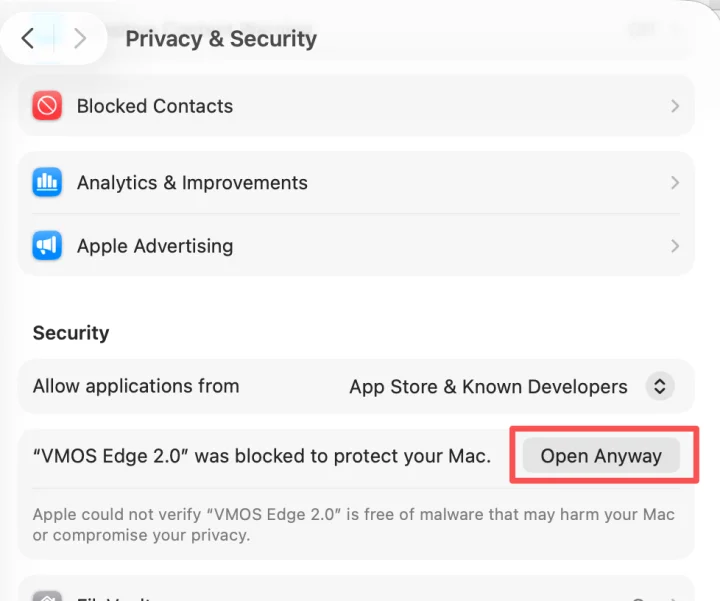
A: Due to macOS system security, the first time you open an app downloaded outside the App Store, you need to manually authorize it:
- Open System Settings → Security & Privacy.
- Find the prompt and click “Open Anyway” to launch it normally.
- This operation is only needed once; it will not prompt again on subsequent launches.
Q2: Windows installer prompts “Administrator privileges required”, what should I do?
A:
- Right-click the installation package file.
- Select “Run as administrator”.
- Click “Yes” in the User Account Control (UAC) dialog.
Q3: Antivirus software blocks installation, what should I do?
A:
- Temporarily disable the antivirus software’s “Real-time protection” feature.
- Add the VMOS Edge installation package to the antivirus software’s Whitelist / Trusted Zone.
- Run the installer again.
Q4: Which operating systems does VMOS Edge support?
A:
- Windows: Windows 10 (1809+) / Windows 11.
- macOS: macOS 10.15 and above.
- Linux: Ubuntu 18.04+ / CentOS 7+ (Subject to specific version support).
Q5: Installation failed, prompting insufficient disk space?
A:
- Check the available space on the target disk, ensuring at least 50GB of free space.
- Clean up disk space by deleting unnecessary files.
- It is recommended to choose the partition with the most free space for installation.
📂 2. Cloud Phone Creation and System Configuration
Q1: The cloud phone prompts that “Google services” need to be enabled. How do I operate?
A:
New instances: On the cloud phone configuration page during creation, check the “Enable GMS” option.
Existing instances: Enter the cloud phone interface -> Click “Extension Tools” -> Manually toggle the “Google Framework Services” switch.
Note: Please restart the cloud phone as prompted after enabling. The setting will be saved automatically, no need to toggle repeatedly.
Q2: How do I change the device model of a cloud phone?
A:
Virtual machines: Enter “Extension Tools”; it supports direct modification of various model parameters.
Cloud real devices: Due to hardware-level limitations, it is recommended to use the “One-Click New Machine” feature for environment simulation. Modifying some parameters in Extension Tools may not take effect.
Q3: How can I quickly create multiple cloud phones with the same configuration?
A: Please use the “Cloud Machine Cloning” feature. This feature can fully copy the current instance’s system environment, installed apps, and configuration information, enabling fast batch deployment of businesses.
💾 3. Hardware Host and Storage Management
Q1: The client fails to recognize the hard drive (capacity shows 0), what should I do?
A:
- Execute the “Reset Host” operation on the client.
- Execute the “Format Disk” process (ensure important data is backed up).
- If it is still not recognized, please physically re-seat the hard drive, ensuring the NVMe connector is firmly connected.
Q2: What are the hard drive specification requirements for VMOS Edge?
A:
- Physical Specs: Only supports M.2 2280 Solid State Drives with NVMe Protocol.
- Interface Compatibility: Compatible with NVMe 2.0 / 3.0 / 4.0.
- File Format: The system will automatically format it uniformly to
ext4format.
Q3: What is the specific difference between cloud real devices and virtual machines?
A:
Cloud real devices: Encapsulated based on real hardware environments, with extremely high environment simulation fidelity, suitable for businesses with high anti-ban requirements and sensitivity to compatibility.
Virtual machines: Simulated environments based on the open-source Android system, more suitable for general development, debugging, and ordinary application testing.
🌐 4. Network Connectivity and Proxy Settings
Q1: The host shows “Offline” status, how should I troubleshoot?
A:
- Check IP Changes: The host IP may change after a restart. Please confirm whether the currently assigned host IP matches the one displayed on the client.
- Network Connectivity Test: Run the command line on a PC in the same network and enter
ping [Host IP]. If it cannot ping through, please check the physical network cable and router settings.
Q2: The host is assigned a 10.xxx subnet IP and cannot connect, what should I do?
A: This is a conflict caused by the factory static IP. Please try resetting the network:
- Keep the power connected and unplug the network cable.
- Observe the screen and wait until “Not Net!” is displayed.
- Plug the network cable back in and wait for the router to reassign a normal LAN IP.
Q3: Proxy is set successfully but apps cannot access the internet, or detection fails?
A:
- Manual Verification: Use the
curlcommand on the PC side to verify the connectivity of the proxy server. - Parameter Confirmation: Strictly verify the IP, port, account, and password, and pay attention to whether overseas proxies have cross-border network interference.
- Try Using: Some detection mechanisms are provided by third parties. If the configuration is correct, you can try saving and using it directly even if the detection fails.
🛠️ 5. Version Updates and Troubleshooting
Q1: Prompt “Current image version is too low, import not supported”, what should I do?
A: VMOS Edge 2.0 does not support old images from version 1.0. Please visit the [Image Release History] documentation to download the latest image adapted to the 2.0 architecture for import.
Q2: Cloud phone status shows “Failed” and cannot be operated, what should I do?
A: This situation is usually caused by an abnormality in the underlying container.
- Warning: Do not try to restart repeatedly or forcibly cut off power.
- Solution: Please contact technical support personnel, and engineers will try to repair or restart the corresponding Docker container from the backend.
Q3: Does VMOS Edge 2.0 support automatic CBS updates?
A: Currently, automatic updates are not supported. If you need to upgrade the CBS version, please go to the official website to download the latest installation package for manual overwrite installation.