
Model Settings
Model Settings allows you to collect device information from a physical Android phone, import it into VMOS Edge, and create cloud devices with custom models.
Prerequisites
First, download and install the model collection APK on your Android phone:
- Download link: ADI-release-v1.2.4.apk
Steps
1. Install and open the collection tool on Android
After installing the APK, open the app, make sure you are on the "Local Device Information Collection" page, and verify the version info is displayed correctly.
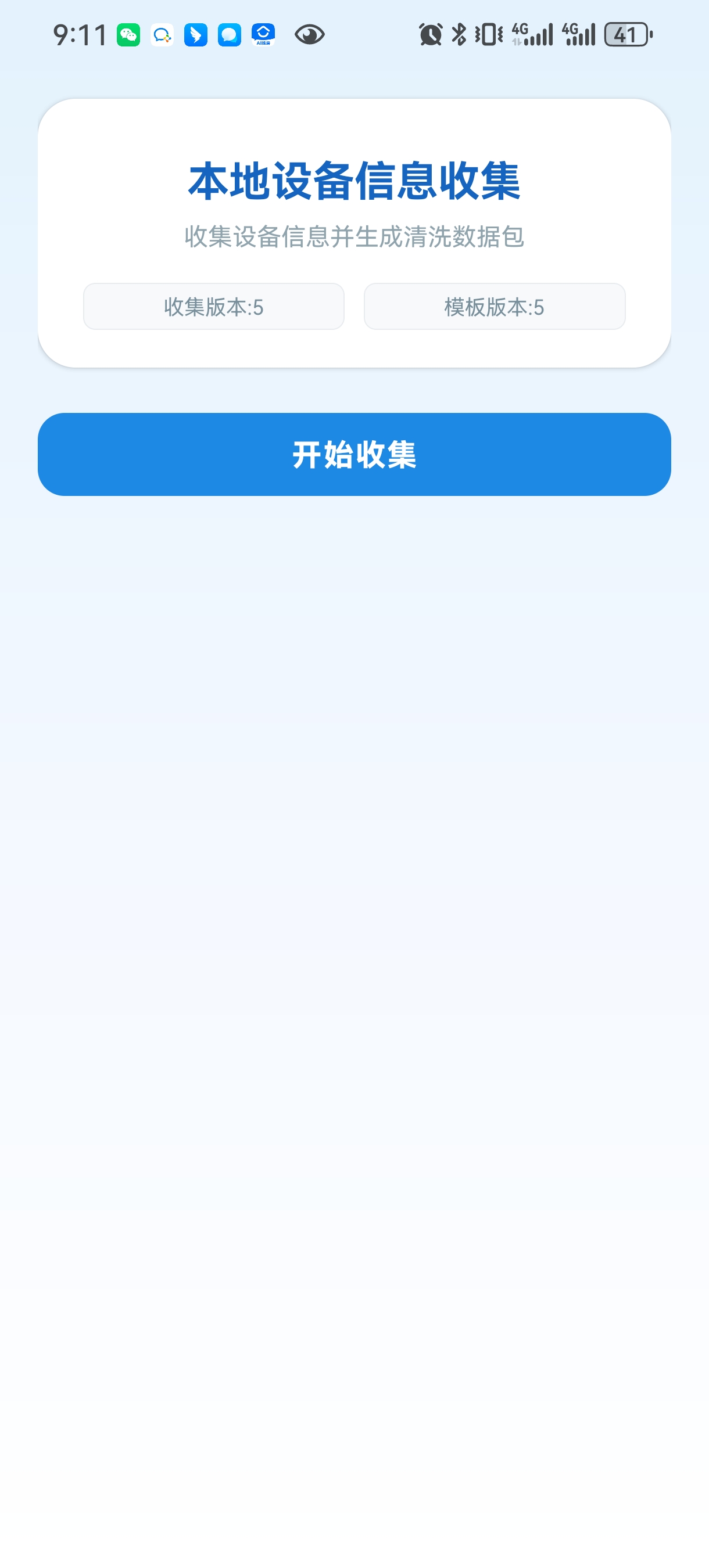
2. Tap "Start Collection" and export the ZIP file
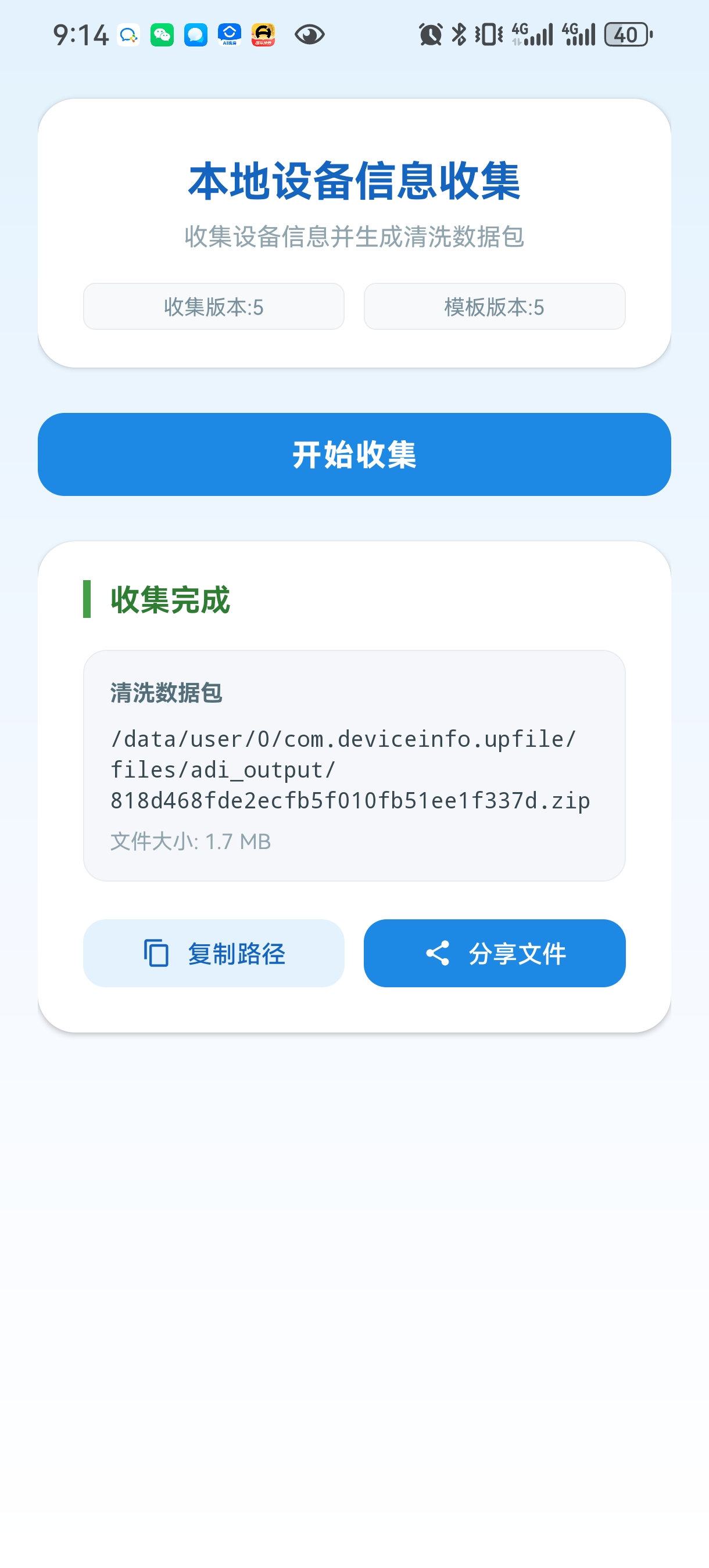
Tap "Start Collection". After the page shows "Collection Completed", tap "Share File" to export the cleaned data package (.zip), then transfer or download the ZIP file to the PC where the VMOS Edge client is installed.
3. Import the collected ZIP in the PC client
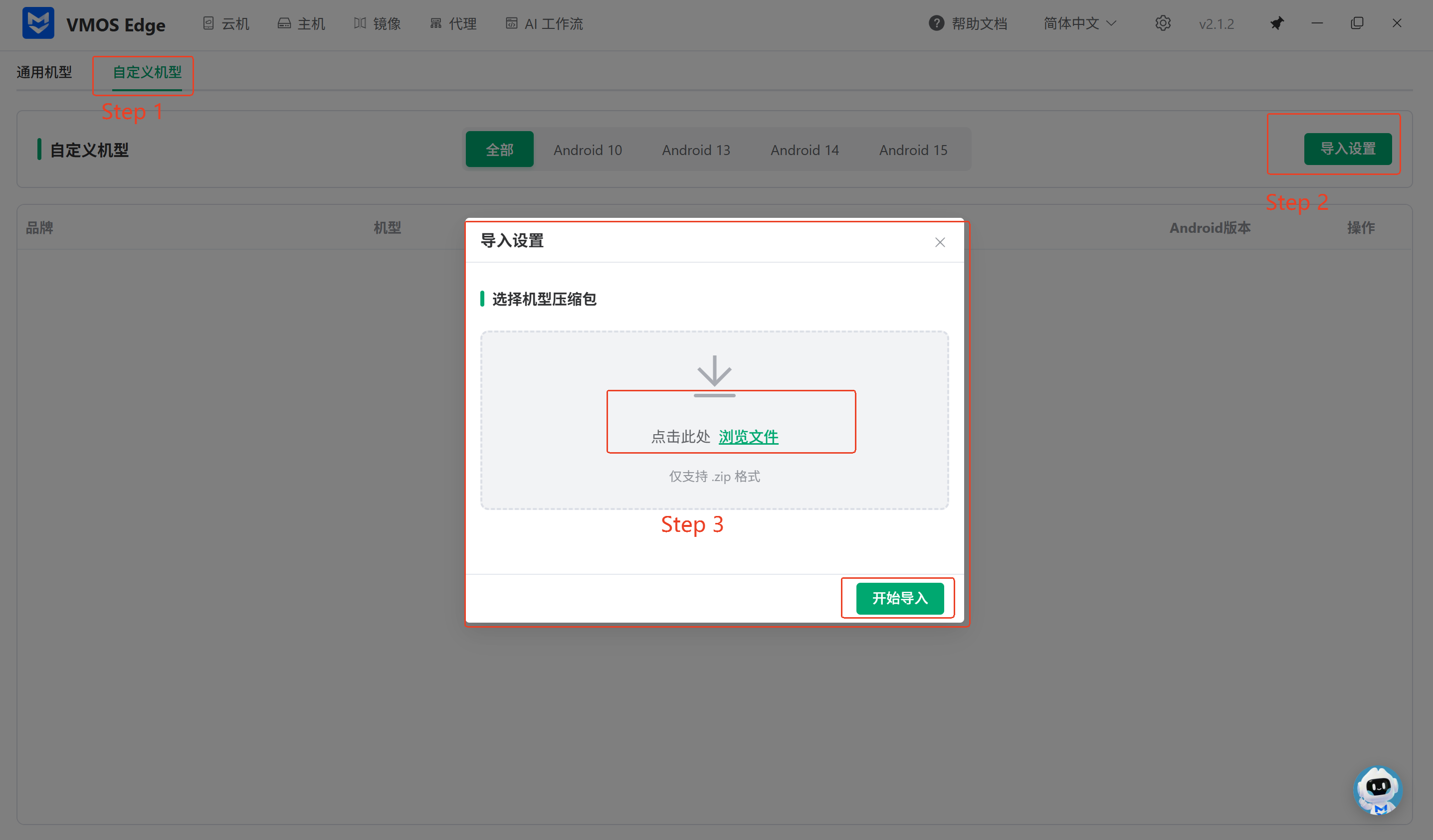
Open VMOS Edge on PC, go to Model Settings -> Custom Models -> Import Settings, select the exported ZIP file, and start the import.
4. Select the imported model when creating a cloud device
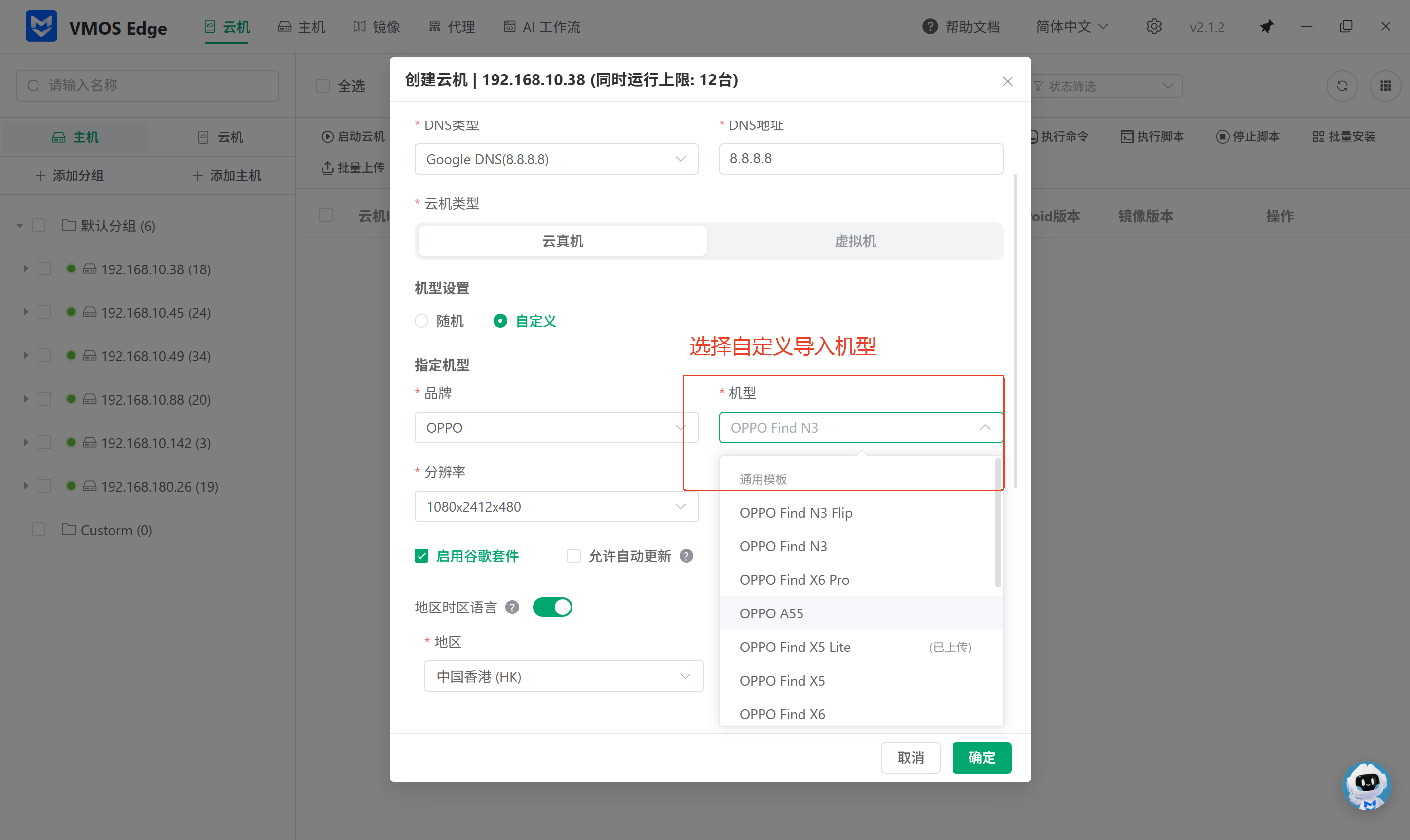
When creating a cloud device, choose the imported model in the "Custom" model selection and complete creation.
Notes
- Only
.zipfiles are supported for import. Do not upload extracted folders. - If the imported model does not appear, refresh the model list or restart the client and try again.
- Validate compatibility on a small number of instances before large-scale creation.