
Settings Description
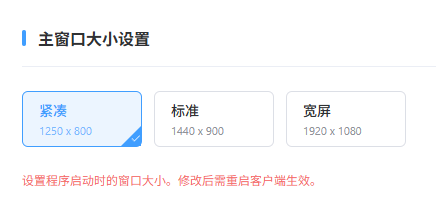
1. Main Window Size
Used to adjust the display size of the PC client main interface to fit different monitor resolutions.
- Preset options: Provides three modes: Compact (1250 x 800), Standard (1440 x 900), and Widescreen (1920 x 1080).
- Effect mechanism: After modifying the main window size, you must restart the client for the new setting to take effect.
2. Cloud Machine Window Settings
Used to customize the initial display effect of cloud machine mirroring windows.
- Initial size: Supports Small (480), Medium (600), Large (960), and Custom (range 300–2000 px).
- Adaptive logic: The picture automatically scales according to the device aspect ratio.
- Effect mechanism: Changes take effect on the next device connection.

3. Operation Settings
Used to optimize the sensitivity and visual feedback of mouse interaction with the cloud machine screen.
- Scroll wheel sensitivity: Adjustable range 0.001–800, where higher values mean more sensitive scrolling.
- Android Hover: When enabled, supports hover interaction effects in Android.

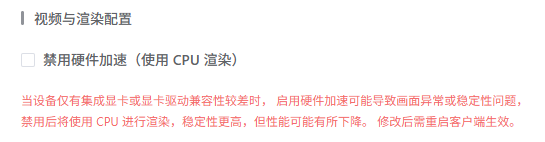
4. Video and Rendering Configuration
Provides rendering scheme switching for hardware compatibility.
- Disable hardware acceleration (use CPU rendering):
- Use cases: When there is only integrated graphics or the graphics driver is poorly compatible, causing unstable or abnormal display, it is recommended to enable this option.
- Pros and cons: Enabling it improves stability but may reduce performance (such as frame rate).
- Effect mechanism: After modification, you must restart the client to apply the change.
5. Screenshot Configuration
Used to manage the save path for screenshots captured during cloud machine operations.
- Storage directory: Shows the current folder path on the local computer where screenshots are stored.
- Path management:
- Change: Allows customizing the screenshot folder. It is recommended to choose a non-system drive with sufficient space.
- Open: Click to jump directly to the current storage directory for quick viewing and management of screenshots.

6. Export Logs
Provides a troubleshooting tool for quickly reporting issues to the technical support team when abnormalities occur.
- Export logs: Click this button to export detailed logs of the client runtime to a local file.
- Purpose: The log file contains low-level runtime data and is a key basis for fault localization and troubleshooting.